


PDF Jumper & Document Reader
3.715.00 Reviews
App Specs
- Version
- 1.1.1
- Updated On
- License
- Free
- Downloads
- 500,000+
- Developer
- Vialle;
- Categories
- Productivity
- Platform
- Android
Screenshots
 Analysis by AppCompare
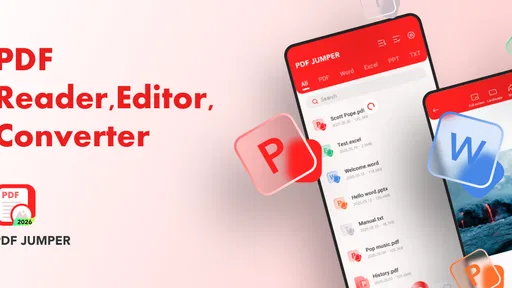
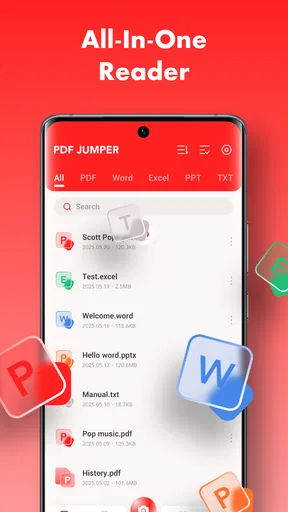
I often keep a PDF or spreadsheet open while doing something else on my phone, and that is where PDF Jumper & Document Reader makes sense. It is a free productivity app from Vialle built around a simple job: opening PDF, Excel, and DOCX files without turning the phone into a full office suite. After using it, my impression is that its appeal comes from restraint. It aims to be a compact viewer rather than a complete document-management system.
That distinction matters. If you want to read a report, check a table, or quickly inspect a Word document, a focused viewer can feel more comfortable than a large office application. If you need to edit, collaborate, convert, annotate, or manage a complicated archive, you will probably expect more than this app’s narrow purpose suggests. I would recommend it most to people who value a clean way to open common files and do not want a crowded interface.
How the app feels during everyday document use
I find the everyday appeal of PDF Jumper & Document Reader is less about handling every document task and more about making a quick check feel manageable on a phone. The next section looks at how that focused role fits into real routines, including the small decisions that can make switching between files less frustrating.
A quick viewer is useful when the task is only reading
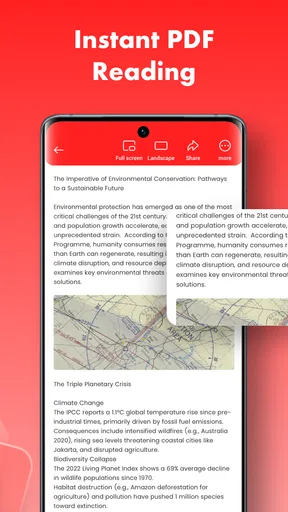
The first thing I noticed about the concept is how practical it is for short document checks. A PDF received in a message, a DOCX attachment from work, or an Excel file sent for reference does not always need editing. Sometimes I only need to confirm a date, read a paragraph, inspect a row, or look at a page before deciding what to do next. A dedicated viewer is well suited to that kind of interruption.
The store summary describes a clean and compact viewer, and that focus gives the app a clear identity. Rather than approaching it as a replacement for a desktop office program, I see it as a lightweight reading stop between other tasks. That makes it particularly useful on a phone, where a complicated toolbar can take up more space than the document itself.
PDF files are likely to be the most natural use case because people commonly receive them as fixed-layout documents. DOCX files are helpful when the original document is still being shared, while Excel support is valuable for checking information that is arranged in rows and columns. In all three cases, the important question is not whether the app can replace a computer, but whether it lets me get to the content without unnecessary friction.
What I would expect from its speed
For ordinary reading, the compact design should make the experience feel direct, especially when I open a modest document and only move through a few pages. I would not judge a viewer by how many advanced tools it includes; I would judge it by how quickly I can reach the page or cell I need. That is the right performance standard for this app.
Worth Reading Before You Choose

EA SPORTS FC Mobile 26 Is a Bigger Football Game, but It Takes Time

Flipboard Shows What News Apps Must Do Beyond the Feed

Switching to Android Auto Means Rethinking Your Driving Routine

Google Calendar Makes a Crowded Week Easier to Manage

Ludo King Makes the Most of the Minutes Between Plans

Baby Panda World Brings Quick Play to Modern Phones, but Its Game Library Feels Busy
There is an important difference between opening a short document and handling a demanding one. A text-heavy PDF, a spreadsheet with many populated cells, or a DOCX with complex formatting can put more pressure on any mobile viewer. I would therefore avoid assuming that the same smoothness applies to every file. The sensible workflow is to test the documents you actually use before making it your only reader.
One useful habit is to open important files before leaving a reliable connection and check that the layout is readable. That is not a criticism unique to this app; it is simply good practice when a phone is being used for work or travel. It also helps reveal whether a particular document depends on formatting that does not translate comfortably to a small screen.
Where heavy use changes the experience
The app’s strengths are easiest to appreciate when I use it for one document at a time. Heavy use is a different situation. Moving repeatedly between PDFs, spreadsheets, and Word files can expose the limits of a compact viewer, especially if I expect it to behave like a full document workspace. The more varied the files, the more important it becomes to keep expectations realistic.
For example, I might receive a meeting agenda as a PDF, a budget sheet in Excel, and a draft letter in DOCX within the same afternoon. PDF Jumper & Document Reader is attractive for inspecting each item, but I would still use a dedicated editor for changing the budget or rewriting the letter. Switching tools may feel less convenient, yet it prevents a viewer from being judged unfairly for not being an office suite.
A second heavy-use moment is studying or reviewing a long document. A compact reader can be comfortable for checking individual pages, but long sessions demand more from navigation, screen readability, and memory of where I stopped. I would use it confidently for short reviews and reference checks, while treating lengthy research or detailed document comparison as a task better suited to a larger screen.
There is also a practical trade-off when several files are open in succession: simplicity reduces visual clutter, but it may also mean fewer specialized controls than users are accustomed to in larger productivity apps. That is not automatically a weakness. For me, it is a reminder to choose the tool according to the job rather than expecting one free app to cover every document workflow.
Stability and recovering from interruptions
Reliability in a document viewer is not only about whether a file opens. It is also about what happens when a call, notification, or app switch interrupts reading. On a phone, these interruptions are normal, so I pay attention to whether returning to the document feels predictable. A focused app has a better chance of feeling dependable when its task remains limited and clear.
I would still keep a recovery routine for important work. If I am reviewing a contract, travel confirmation, or work attachment, I note the page or section before leaving the app. That small habit protects me from losing my place if the operating system reclaims resources or the document needs to be reopened. It also makes the app more practical for stop-and-start reading.
When a file does not display as expected, I would first check the document in another established reader rather than immediately assuming the phone or file is damaged. Office documents can contain unusual layouts, embedded elements, or formatting choices that are difficult for a compact mobile viewer to reproduce perfectly. The app is best treated as a convenient reader, not as a guarantee that every desktop-created document will look identical.
The average rating is 3.7 from around 929 ratings, while the listing shows 13 written reviews. I read that as a sign to keep expectations balanced: the app has enough adoption to be familiar to a meaningful group of users, but the score does not justify calling it flawless. My own recommendation follows the same middle ground. It is worth trying for straightforward viewing, but I would not make it the sole tool for documents that are critical or unusually complex.
Phone compatibility and practical limits
The app runs on Android 8.0 or later, which gives it a reasonably broad device range. That is useful if I am working with an older phone rather than a recent flagship. At the same time, an older device can have less memory and a slower processor, so the experience may vary more with large or complicated files than with simple documents.
Screen size also changes the value of the app. On a compact phone, a PDF may require more zooming, while a spreadsheet can be difficult to inspect because many columns compete for a narrow display. On a larger phone or tablet, the same viewer can feel more comfortable without changing the document itself. I would choose it for portability, not because a phone is the ideal screen for every file.
The age rating is Everyone, which fits the general-purpose nature of the app. Its free price also lowers the barrier to testing it with real files. I would install it on the device where I actually receive documents, open a few representative examples, and then decide whether it handles my routine well enough. That is more useful than judging it from a single small PDF.
Storage and file organization are another part of the decision. A viewer may help me read a file, but it does not automatically replace a careful folder system or a cloud-storage workflow. I would keep important originals organized elsewhere and use this app as the reading layer. That separation is especially sensible for work documents, where finding the correct version matters as much as opening it.
Useful scenarios beyond simply opening a file
One realistic scenario is a commuter checking a timetable, invoice, or application form while away from a computer. The person may not need to edit anything; they only need to confirm information and perhaps show the document to someone else. In that situation, a compact viewer is more appropriate than installing a large suite with tools that will not be used.
Another is a student checking lecture notes in DOCX format and consulting an Excel table shared by a teacher. The app can serve as a common place to inspect different file types, which reduces the need to remember which application opens each attachment. I would still do serious writing and spreadsheet work in software designed for those tasks, but the viewer can handle the quick-reference part of the day.
A less obvious use is document triage. When several attachments arrive, I can open each one, identify which deserves detailed attention, and leave the rest for later. This is where a clean interface has real value: the app is not asking me to begin editing every file simply because I opened it. It supports a quick decision-making workflow.
For people who share a phone with family members, a simple viewer can also be easier to explain than a full office application. Someone may only need to read a school notice or inspect a form. The lower learning curve is useful, although I would still be careful about opening sensitive documents on a shared device and about keeping files organized after viewing them.
How it compares with larger office apps
The usual alternatives in this category tend to combine viewing with editing, cloud integration, collaboration, scanning, or file conversion. Those features are valuable when I am actively producing documents. They can also make the interface feel heavier and increase the number of decisions required before I reach the content.
PDF Jumper & Document Reader has a clearer advantage when my goal is inspection rather than creation. It is easier to justify a focused viewer for occasional attachments than a full office suite that I rarely use. The trade-off is straightforward: I give up the broader workspace in exchange for a simpler reading experience.
For PDF-heavy work, a specialized PDF application may be better if I need annotations, signatures, advanced search, or detailed page management. For spreadsheets, Microsoft Excel or another dedicated spreadsheet tool is the stronger choice when formulas, editing, charts, or collaboration matter. For DOCX writing, a word processor is obviously more suitable. I would choose this app when those activities are occasional and reading is the main requirement.
This comparison also explains why the app may not satisfy every user despite its sensible concept. A person who wants one installation to edit, export, share, and collaborate across all document types should look toward a broader productivity suite. A person who mainly wants to open files without a large collection of controls may appreciate the narrower approach much more.
Who should install it, and who should skip it
I would recommend it to students, travelers, casual office users, and anyone who receives mixed document attachments but edits them only occasionally. It is also a reasonable option for an older compatible Android phone where keeping applications focused can make everyday use less overwhelming.
I would be more cautious if documents are central to my job. If I need dependable handling of complex spreadsheets, precise Word formatting, annotations, signatures, or collaboration, I would install a more specialized tool alongside it or choose that tool instead. The same applies to people who spend long periods reading dense material and prefer the navigation controls of a dedicated PDF reader.
The current version is 1.1.1, and the app has passed the early stage of being completely unknown, with over 100 thousand installs. Those details make it easy to try without paying, but they do not change the basic recommendation: test it with your own files. File behavior depends heavily on the documents, device, and workflow, so personal compatibility matters more than a download figure.
My performance verdict
After weighing the app’s purpose against realistic phone use, I see PDF Jumper & Document Reader as a practical lightweight reader rather than a complete productivity environment. Its best performance case is a straightforward document opened for a quick check, especially when I want PDF, Excel, and DOCX support in one compact place.
Its limitations become more important during long reading sessions, complex layouts, repeated document switching, and any task that requires editing. I would not use it as my only document tool for professional production. Instead, I would keep it available for the moments when a full office suite feels excessive and a file still needs to be opened immediately.
My honest recommendation is to treat it as a convenient first stop, not the final destination for serious document work. Because it is free and supports Android 8.0 or later, trying it on your own phone is low-risk. If your routine is mostly viewing attachments and checking information, its compact approach may be exactly what you want. If your routine involves creating, revising, or collaborating on files, another app will almost certainly serve you better.
In short, Vialle has chosen a useful niche: a reader for common office formats that does not pretend to be an entire office. That focus is its main strength and its clearest boundary. I would keep it for quick document access, use it with realistic expectations on older or smaller devices, and rely on dedicated alternatives whenever accuracy, editing, or advanced document control matters more than simplicity.
Pros
- Jumps quickly between pages
- bookmarks
- and document sections.
- Supports common PDF files without requiring an internet connection.
- Simple interface makes basic reading tasks easy for beginners.
- Useful search tools help locate words or phrases in long documents.
- Lets users keep frequently opened documents organized in one place.
Cons
- Advanced PDF editing and annotation options may be limited.
- Large or image-heavy files can take longer to load on older devices.
- Some useful features may require in-app purchases or upgrades.
- Text extraction may be unreliable in scanned or poorly formatted PDFs.
- The app may request storage access to open and manage local files.
FAQs for PDF Jumper & Document Reader
What is PDF Jumper & Document Reader used for?
PDF Jumper & Document Reader is designed for opening, reading, and navigating PDF documents on a mobile device. Its main appeal is quick access to specific pages or sections, making it useful for manuals, ebooks, forms, reports, and study materials. Before downloading, users should remember that its exact tools may depend on the app version and device compatibility.
Can I use PDF Jumper & Document Reader without an internet connection?
In general, a document reader can open files stored locally on your phone without requiring a constant internet connection. This makes PDF Jumper & Document Reader convenient for reading saved documents while traveling or in areas with limited connectivity. However, downloading files, displaying online content, receiving updates, or using any cloud-related feature may still require mobile data or Wi-Fi.
Does PDF Jumper & Document Reader support all PDF files?
The application is intended for standard PDF documents, but not every file will behave identically. Password-protected, damaged, unusually large, scanned, or heavily formatted PDFs may take longer to load or display differently. Interactive forms, embedded media, advanced annotations, and unusual fonts can also have limited support, so important documents should be tested before relying on the app.
Can I search, zoom, or jump to a specific page in a document?
PDF Jumper & Document Reader focuses on making document navigation easier, so users can generally expect basic reading controls such as page movement and zooming. Depending on the installed version, it may also provide tools for jumping directly to a page or locating text. These features are especially helpful when working with lengthy reports, textbooks, catalogs, or instruction manuals.
Is PDF Jumper & Document Reader free and safe to install?
The app may be available as a free download, although some versions can include advertising, optional purchases, or restrictions on particular functions. Before installing, check the official Google Play Store or Apple App Store listing for the current price, permissions, developer information, and privacy details. Avoid downloading modified APK files or unofficial copies, since they may create security and privacy risks.


